Async data
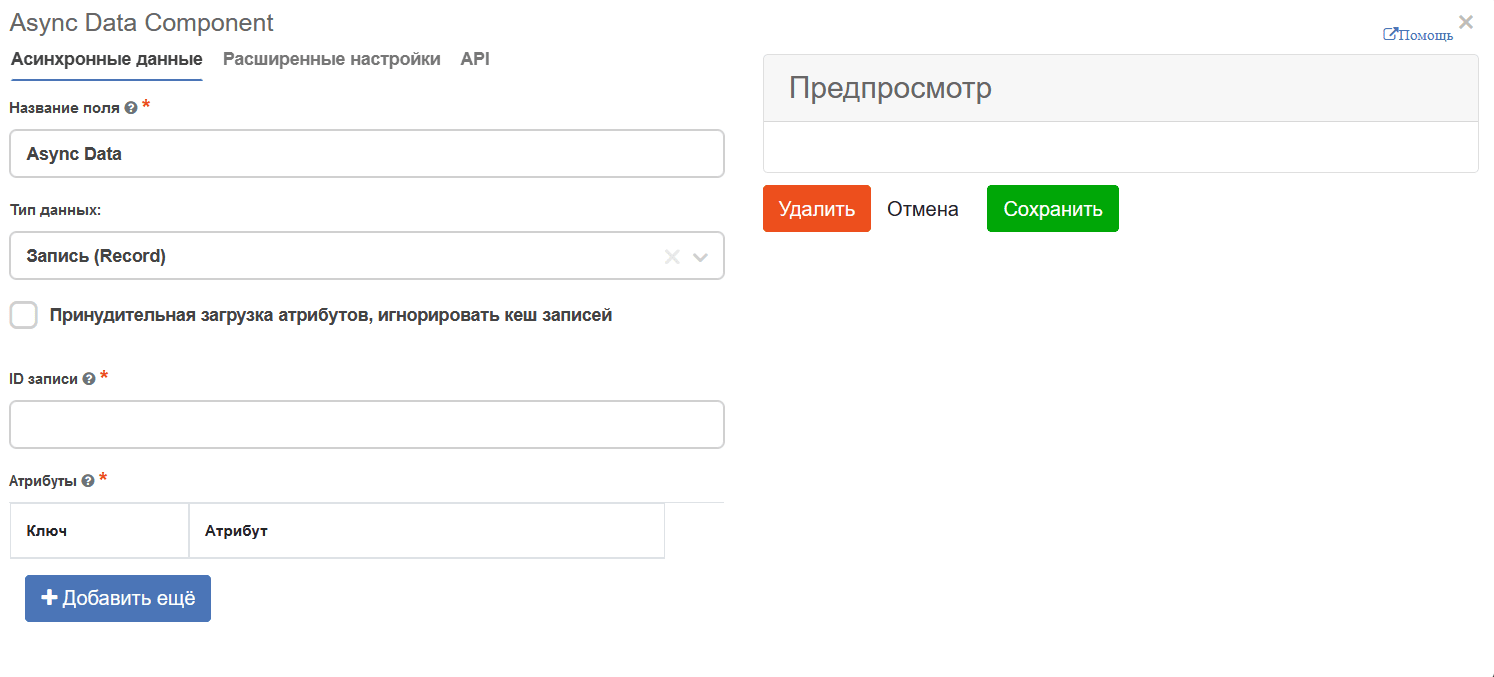
The Async Data component is designed for asynchronously loading data from the server and using it on a form. It allows you to retrieve record attributes, execute search queries, and process arbitrary data without writing custom scripts — using built-in low-code modes.
The component is not displayed on the form directly: its value is available to other components via a reference to the Property Name of this component. This makes Async Data a convenient tool for computing intermediate data, dynamically substituting values, and reacting to form changes.
Record - an entity with a set of attributes and a record identifier (RecordRef).
Data Types
There are 6 data types that can be loaded using this component:
1. Record
If we know the identifier of some record (it is in a form field or is static), then we can select this mode.
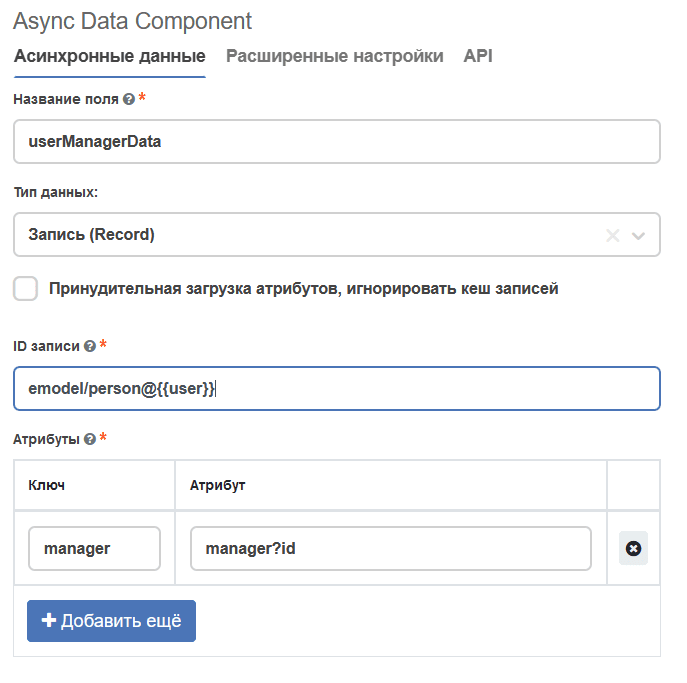
To substitute form values into the record field, you can use insertions with four curly braces and the field we want to substitute {{ data.typeField }}
To substitute the currently edited node, you can use {{ recordId }}
In the attributes, key is the alias (the name by which the attribute value will be stored), and value is the attribute itself. The list of possible values for value can be found in ECOS Records
By default, when trying to get an association from a record, its displayName is returned. To get a link to it, you need to add the suffix ?assoc after specifying the attribute name. Example:
2. Records Array
Works similarly to the Record mode, but applied to an array of record identifiers.
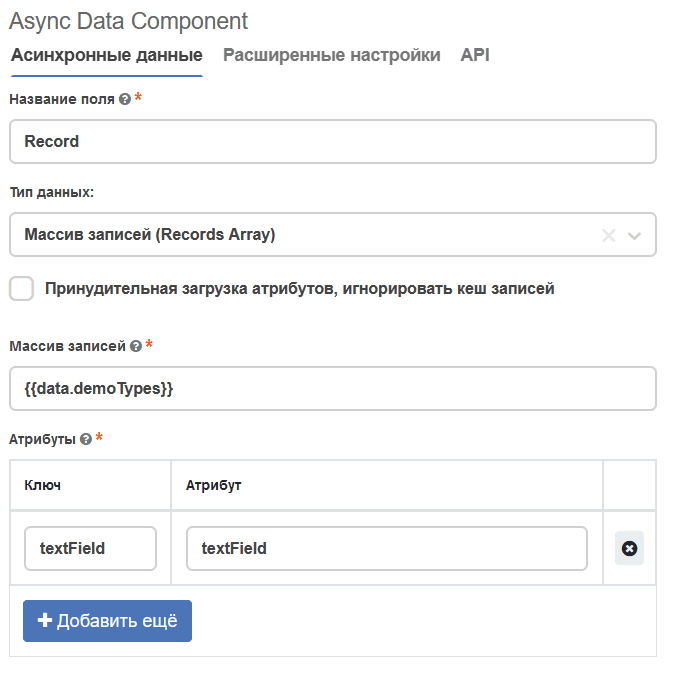
3. Records Query
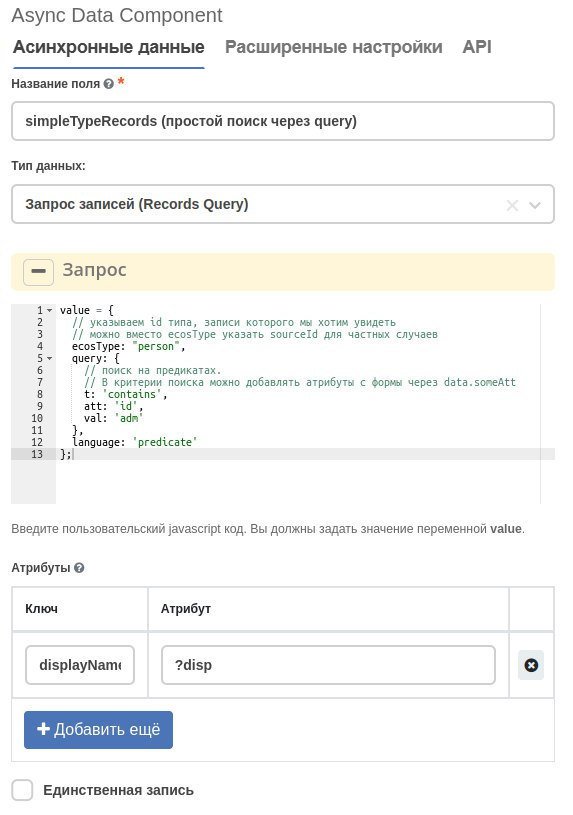
If we want to send a record search request, we can use the RecordsQuery mode. Analogous to Records.query({…}), where a search query is specified (i.e., if there are no references to entities). In this mode, there is a computed javascript field Query, in which you need to prepare a query to send to the server based on form data or other data. If the query does not change, no new requests are made to the server.
Attributes are similar to the Record mode, but they will be requested for each returned record.
If the Single Record parameter is enabled, then only one record will be searched for as a result.
If references to entities already exist, then you need to use a different mode.
Note
For the query, it is better to specify the type ID instead of sourceId:
await Records.query({
ecosType: 'typeId',
language: 'predicate',
query: {}
});
To find out the sourceId value, you can execute the following script:
await Records.get('emodel/type@typeId').load('sourceId');
Query usage example:
const contract = Records.get(recordId).getBaseRecord().id

if (!contract) {
  return;
}

value = {
    sourceId: 'emodel/payments',
    query: {
        "t": "and",
        "val": [
            {
                "t": "eq",
                "att": "_parent",
                "val": contract
            }
        ]
    },
    sortBy: [
        {
            "attribute": "paymentDate",
            "ascending": false
        },
        {
            "attribute": "residue",
            "ascending": true
        }
    ],
    language: 'predicate'
};
4. Ajax
This mode is designed for requesting arbitrary data via URL.
In this mode, there are two computed javascript fields Query Data and Query Result Mapping.
Query Data - a field whose computation result is sent in the request to the server. If the request method is GET, the parameters from Query Data will be added to the URL. If the method is POST, the data will go into the request body.
Query Result Mapping - an optional field. If it is not filled, the entire request result will be in the Async Data control. If there is additional result processing in this field, the result of this processing will be recorded in the field value.
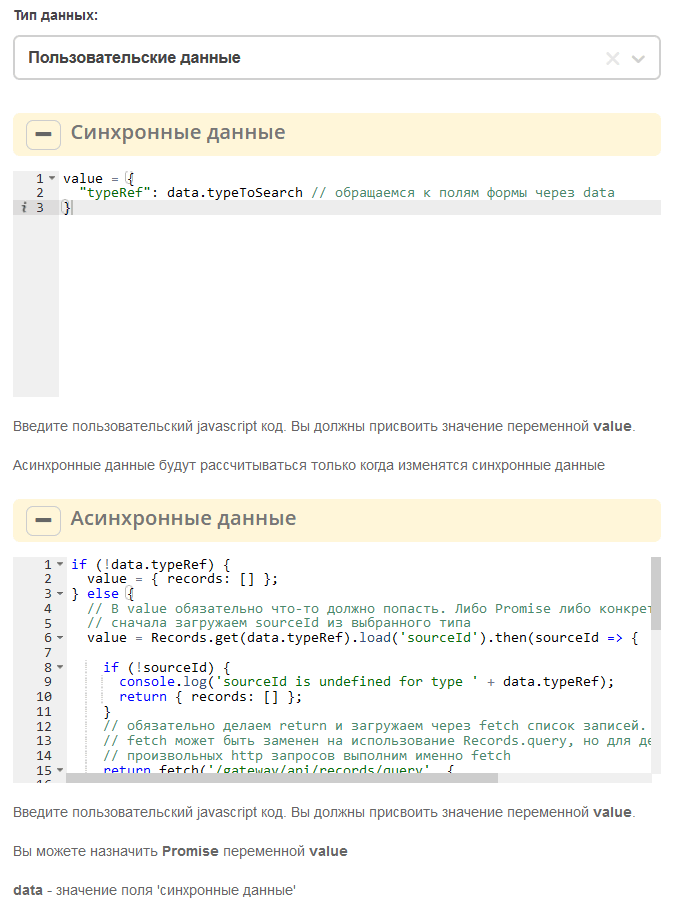
5. Custom Data
This mode is designed for computing any asynchronous data.
In this mode, there are two computed javascript fields Synchronous Data and Asynchronous Data.
Synchronous Data is the preparation of data that will be needed to execute Asynchronous Data.
In Asynchronous Data, you can write a Promise in value, the result of which will be set in the field.
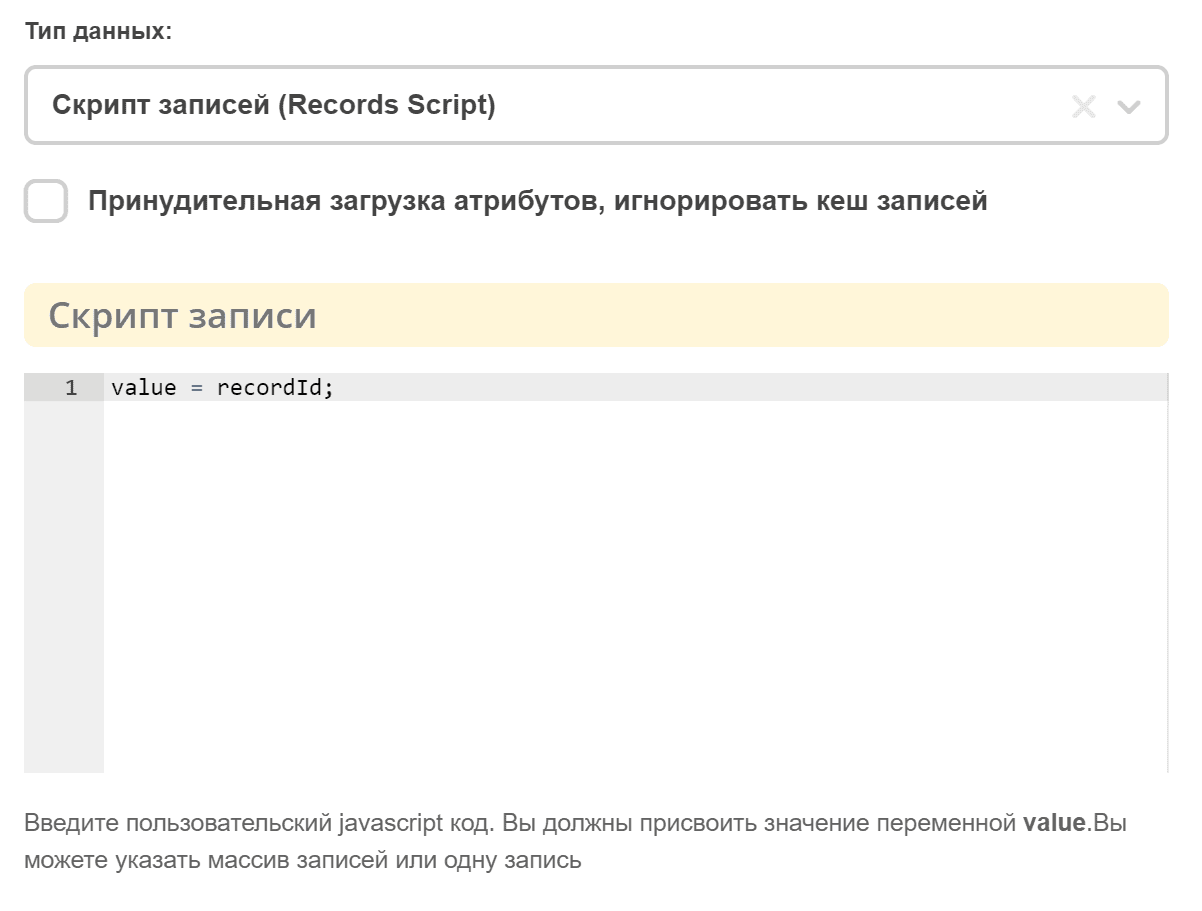
6. Records Script
The same as Record and Record Array, with the difference that it is possible to compute the record identifier. If the identifier is an array, it works as Records Array, otherwise as Record.
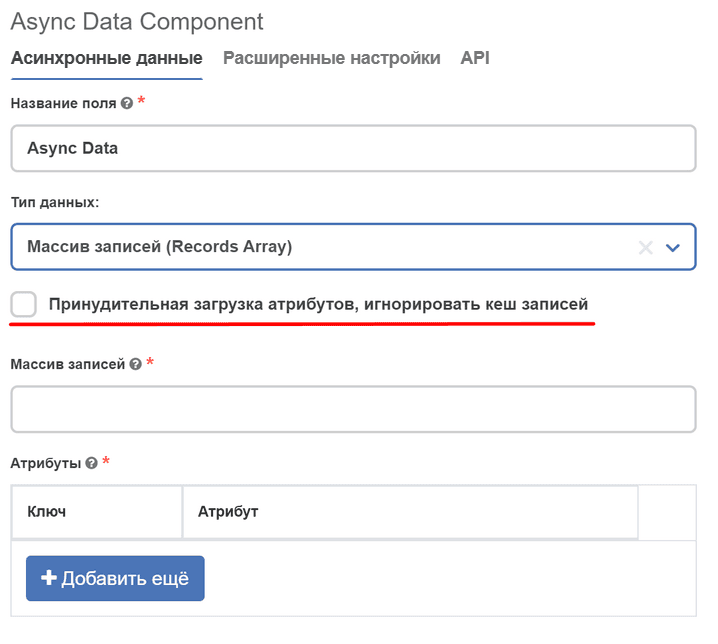
Disabling cache when loading attributes from the server
In the Record, Records Array and Records Script modes, the result of the request to the server is cached. To disable such caching, an option has been added:
Conditions for loading data from the server
In the Advanced Settings tab, the frequency and conditions for data updates are configured.
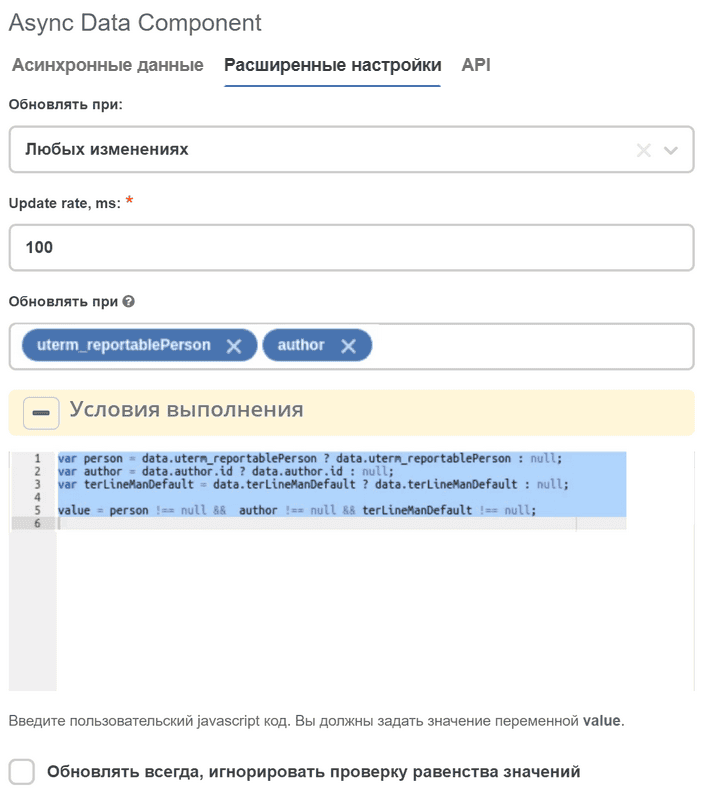
Updating data by events
To react to certain events, there are 2 parameters in the Advanced Settings tab: Update on and Refresh on.
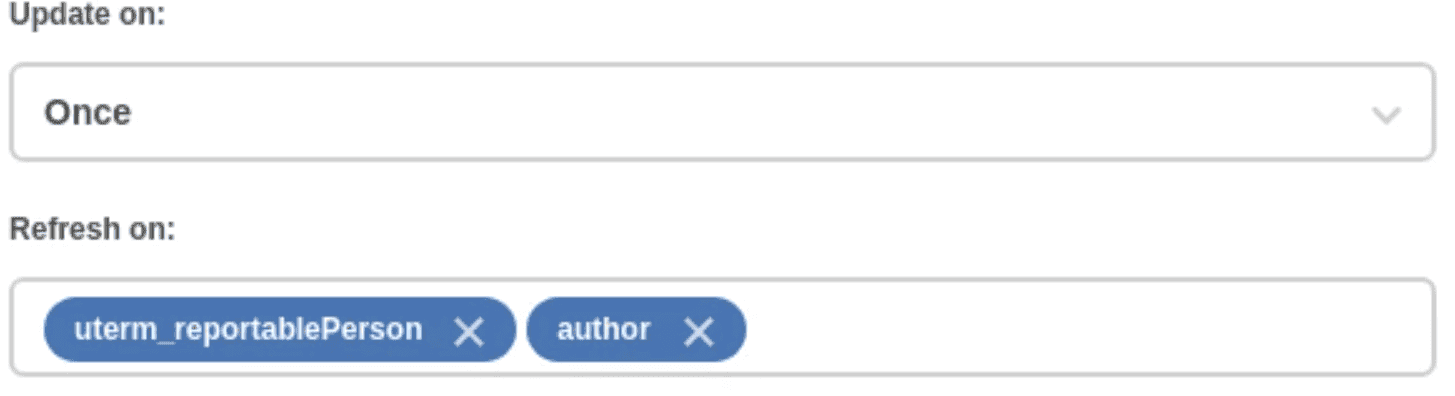
Currently, Update on and Refresh on essentially perform the same function and differ only in the events they react to. These parameters can be combined to cover more situations.
1. Update on
This parameter supports 4 events in response to which information will be loaded:
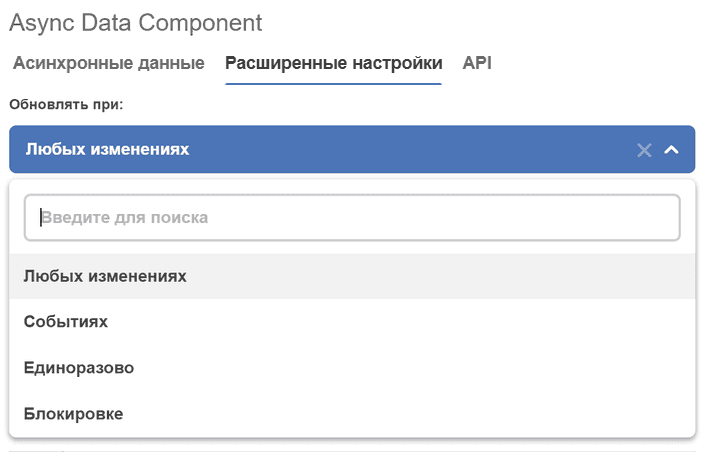
Any change - update data on any change in the form.
Update rate, ms - the period for checking form updates for changes in milliseconds (if the form data has changed during this time, then there will be one request). Thus, if this parameter is 100, and 1000 events have occurred on the form in the last 100 ms, for example, the data will be loaded only once.
Event - update data on a specified event (events can be triggered by a button).
Event - the name of the event to react to.
Once - load data once when the form is loaded.
Disabled - disables the Update on parameter.
2. Refresh on
This parameter has only one field for specifying form elements to track.

The field supports multiple selection, so you can select several elements, upon updating which data will be loaded.
To select an element, start typing the Property Name of the desired element.
Updating another component when an event occurs
An example of a condition for updating another component when the event event_terLineManDefault occurs in the Async Data Component.
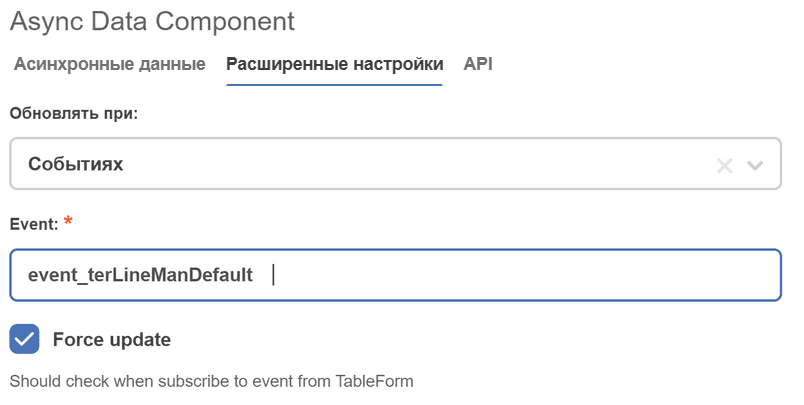
Set Force update when subscribing to an event from the TableForm Component.
Data update conditions
After any event from the Update on and Refresh on parameters has been detected, you can also preliminarily make sure that the data needs to be updated.
1. Update Condition
This parameter is responsible for checking the need to update data after any required event has been detected.
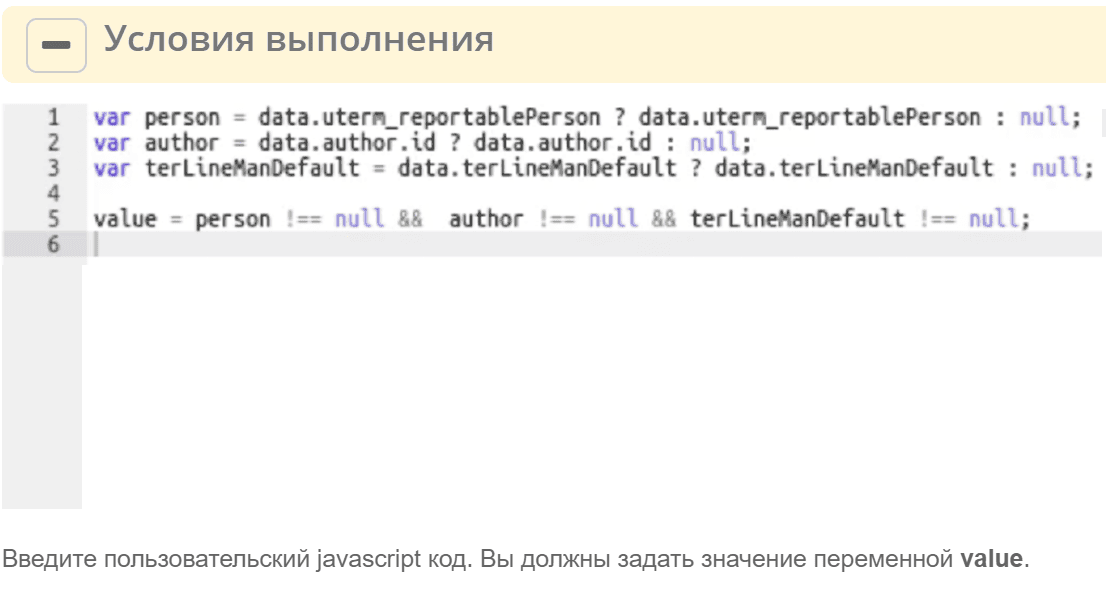
Update Condition is an expandable JavaScript code window. This window is used to enter a check for the need to update data.
You can enter any condition, the main thing is to assign the check result to the variable value. If value === true - it is necessary to load data from the server, and if value === false, then the data will not be loaded.
Attention
If values are triggered in another component, to avoid an infinite loop, do not check the “Update always, ignore value equality check” checkbox.
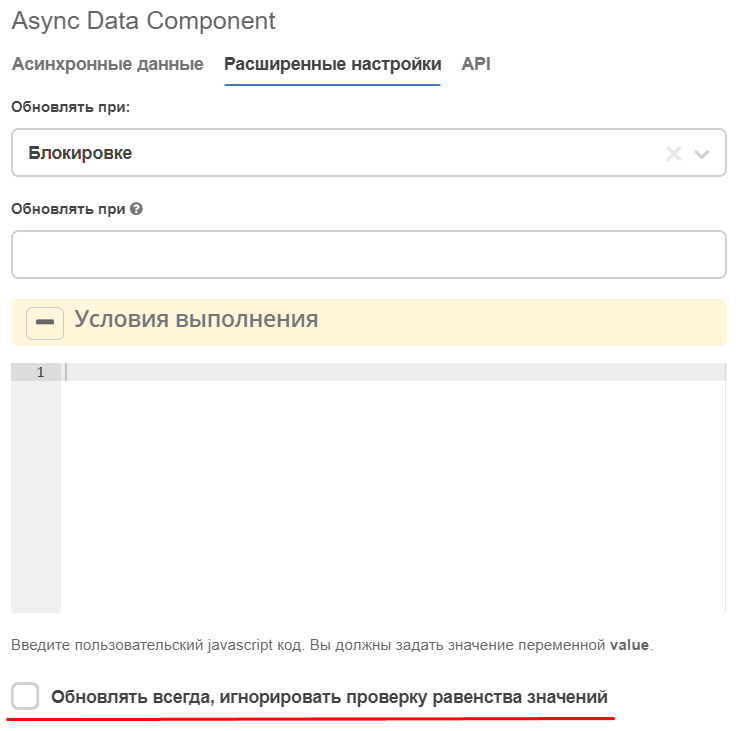
Usage Examples
Working with RecordsAPI
In the form field settings, instead of using the await user.load(…) command, you should use AsyncData.
For working with RecordsAPI in AsyncData, you usually don’t need to write scripts using load, because there are already lowcode modes (1), but if you need functionality with complex logic in the script, then the Custom Data (2) mode is provided for this, and you can already use a script in it.
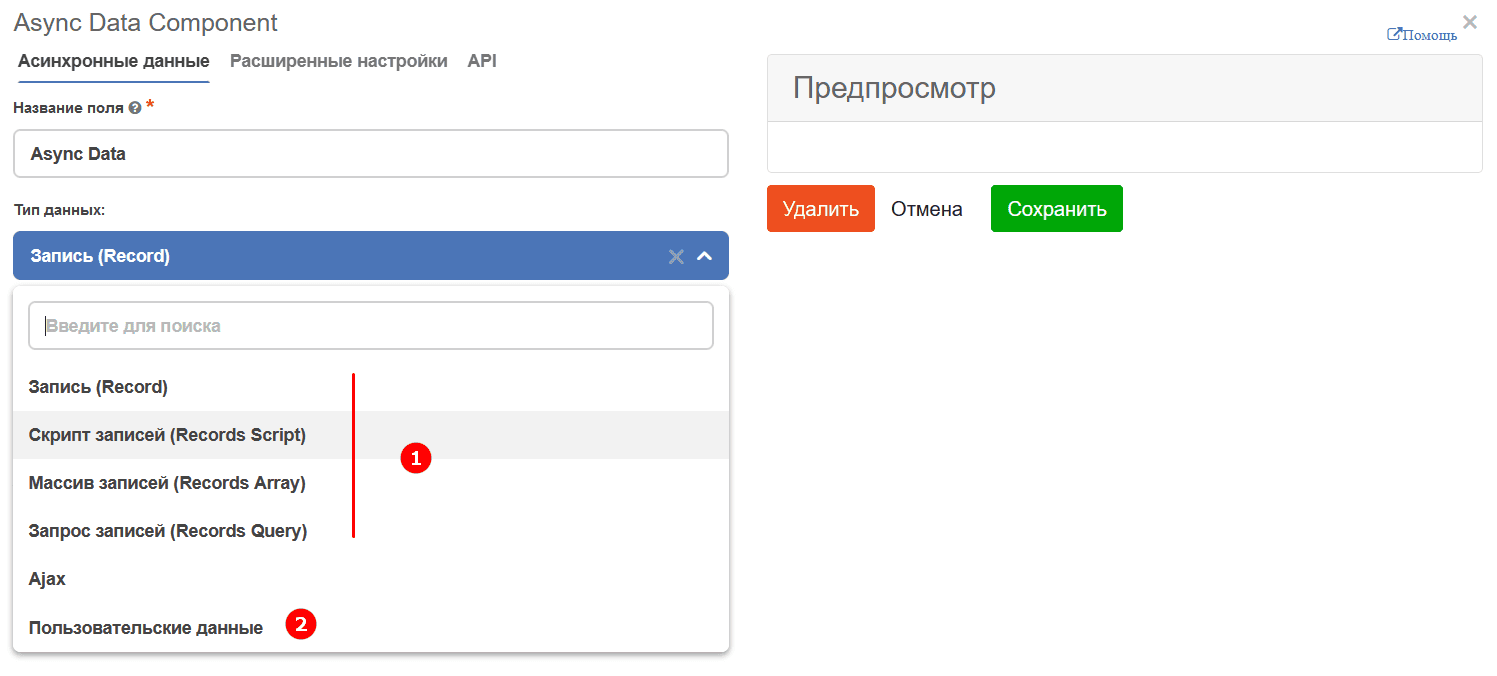
But async is also not supported there at the moment, and in the current version, you need to build logic on then chains.
Usage example: json with form data
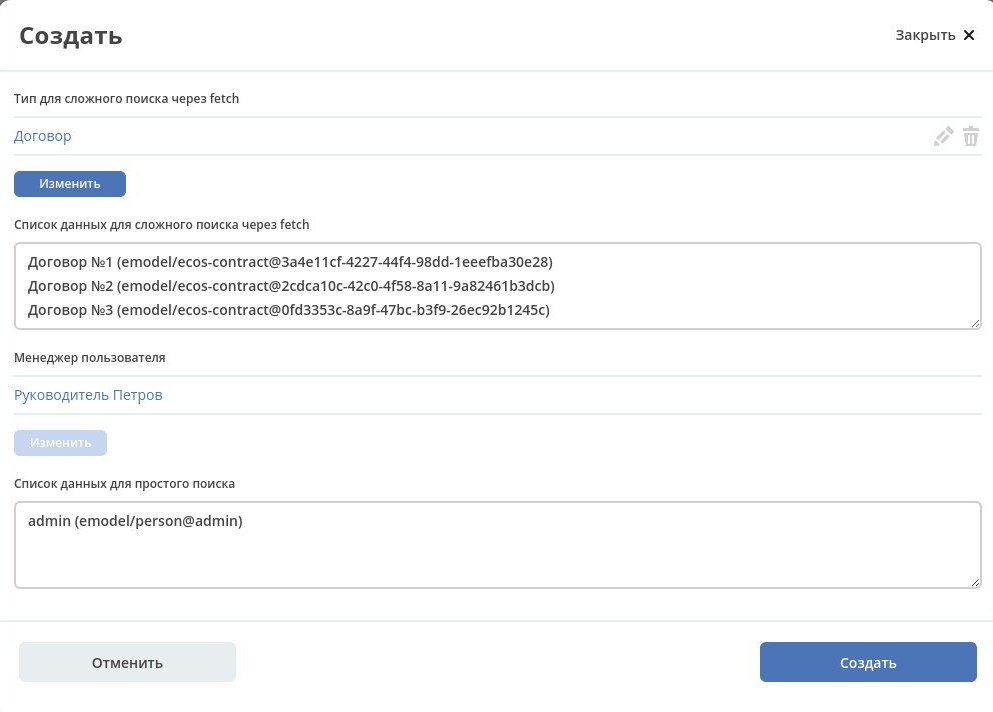
Example of a form with async data
The form has 2 visible fields - a selection from the types journal and a textarea, which is automatically filled with a list of records of the selected type.
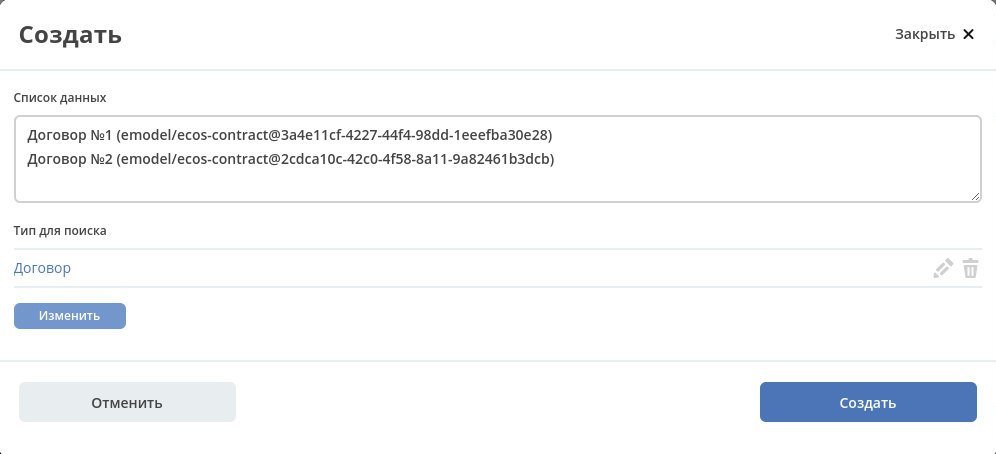
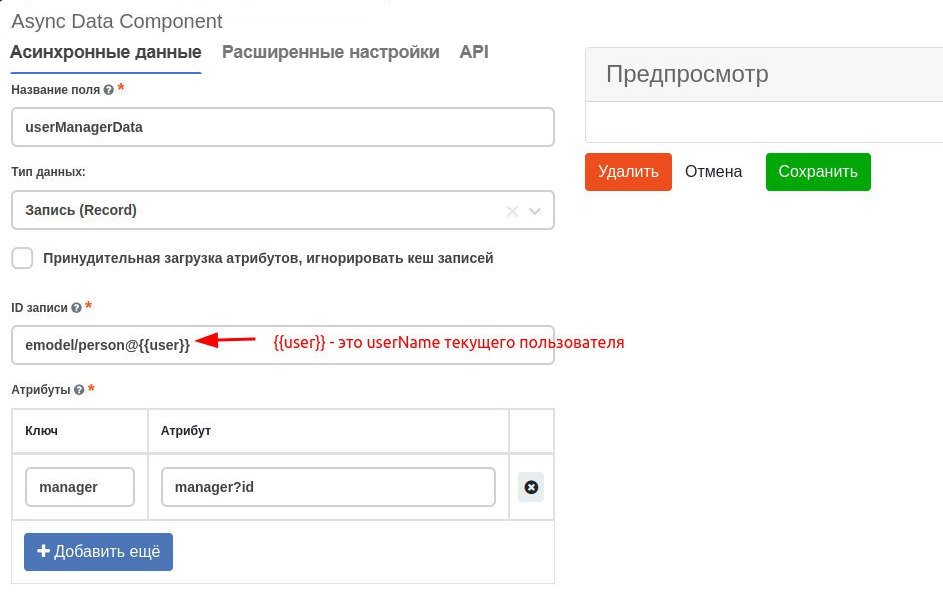
Loading data via async data
Loading data via async data, including using search:
Getting the card link on the confirmation form
On the confirmation form (which is specified in formRef in the confirm property), you need to get the link of the card itself (on which the action was performed).
You can get it inside the form itself through the system field:
instance.options.actionRecord
request a link to the document card itself.
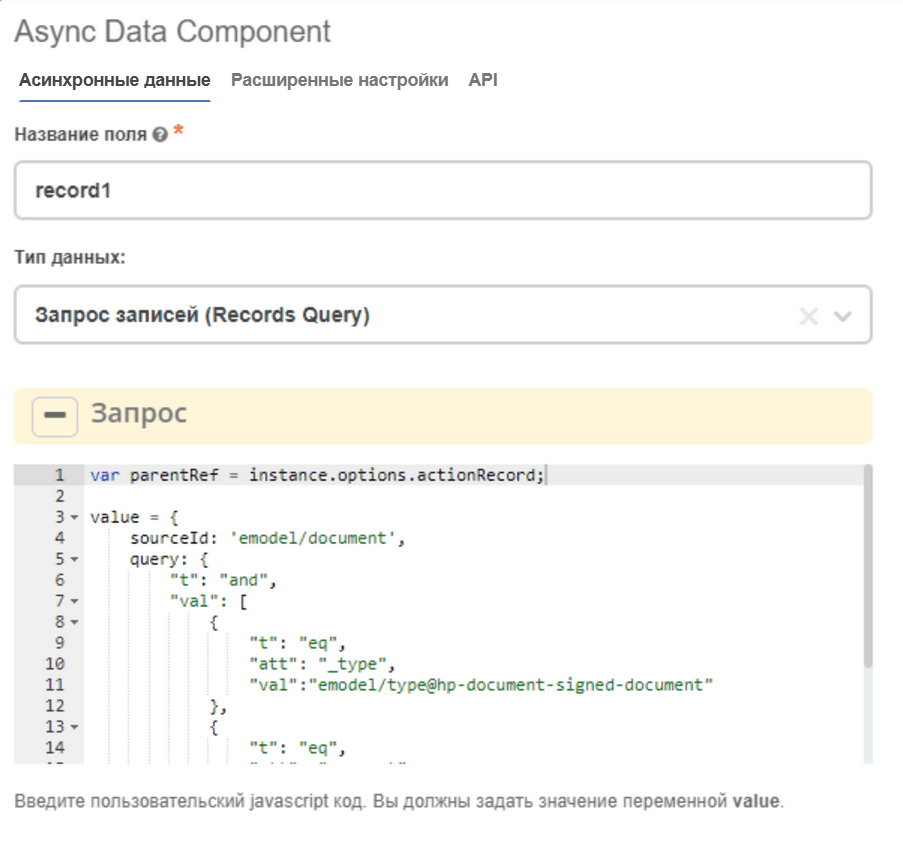
And then, using the Async Data Component on the form itself, request all fields of the main card.
For example, to search for child documents from this card, using the following Record Query:
var parentRef = instance.options.actionRecord;

value = {
sourceId: 'emodel/document',
query: {
      "t": "and",
      "val": [
            {
            "t": "eq",
            "att": "_type",
            "val":"emodel/type@hp-document-signed-document"
            },
            {
            "t": "eq",
            "att": "_parent",
            "val": parentRef
            }
            ]
},
language: 'predicate'
};
Adding validation logic to the submit button
There is no synchronous version of the query function, but you can add validation logic to the submit button and block form saving if the validation fails. To do this, on the “Save” button in the “Basic” tab, you need to set Actions: Custom:
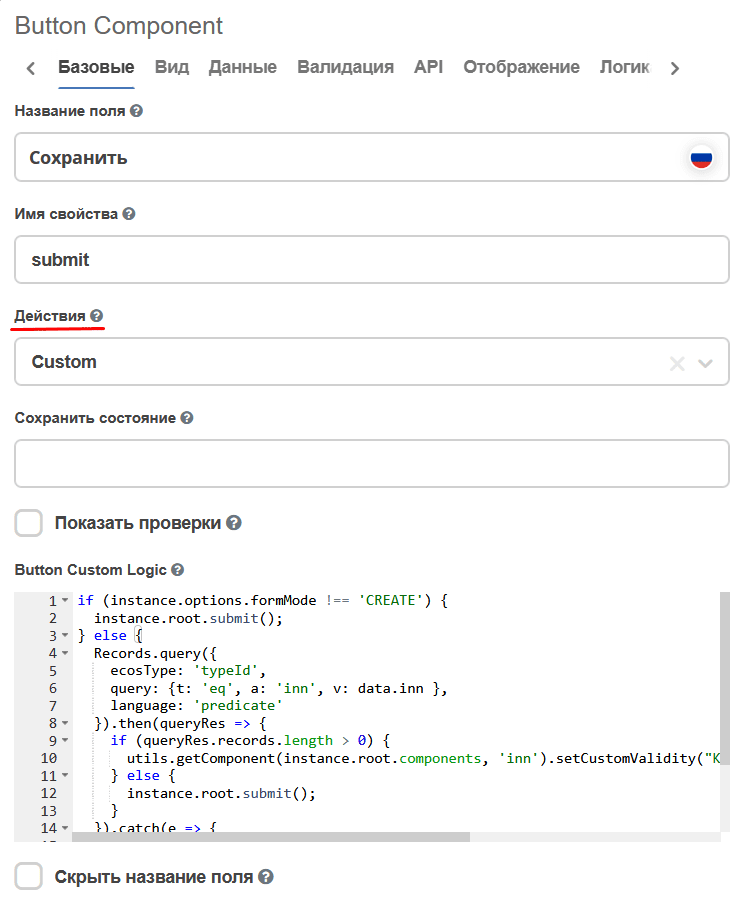
and in the appeared field, enter such a script:
if (instance.options.formMode !== 'CREATE') {
instance.root.submit();
} else {
Records.query({
ecosType: 'typeId',
query: {t: 'eq', a: 'inn', v: data.inn },
language: 'predicate'
}).then(queryRes => {
if (queryRes.records.length > 0) {
      utils.getComponent(instance.root.components, 'inn').setCustomValidity("Контрагент с таким inn уже существует");
} else {
      instance.root.submit();
}
}).catch(e => {
console.error('Error occured', e);
instance.root.showErrors("Ошибка создания. Попробуйте еще раз или свяжитесь с системным администратором");
});
}
Additional examples
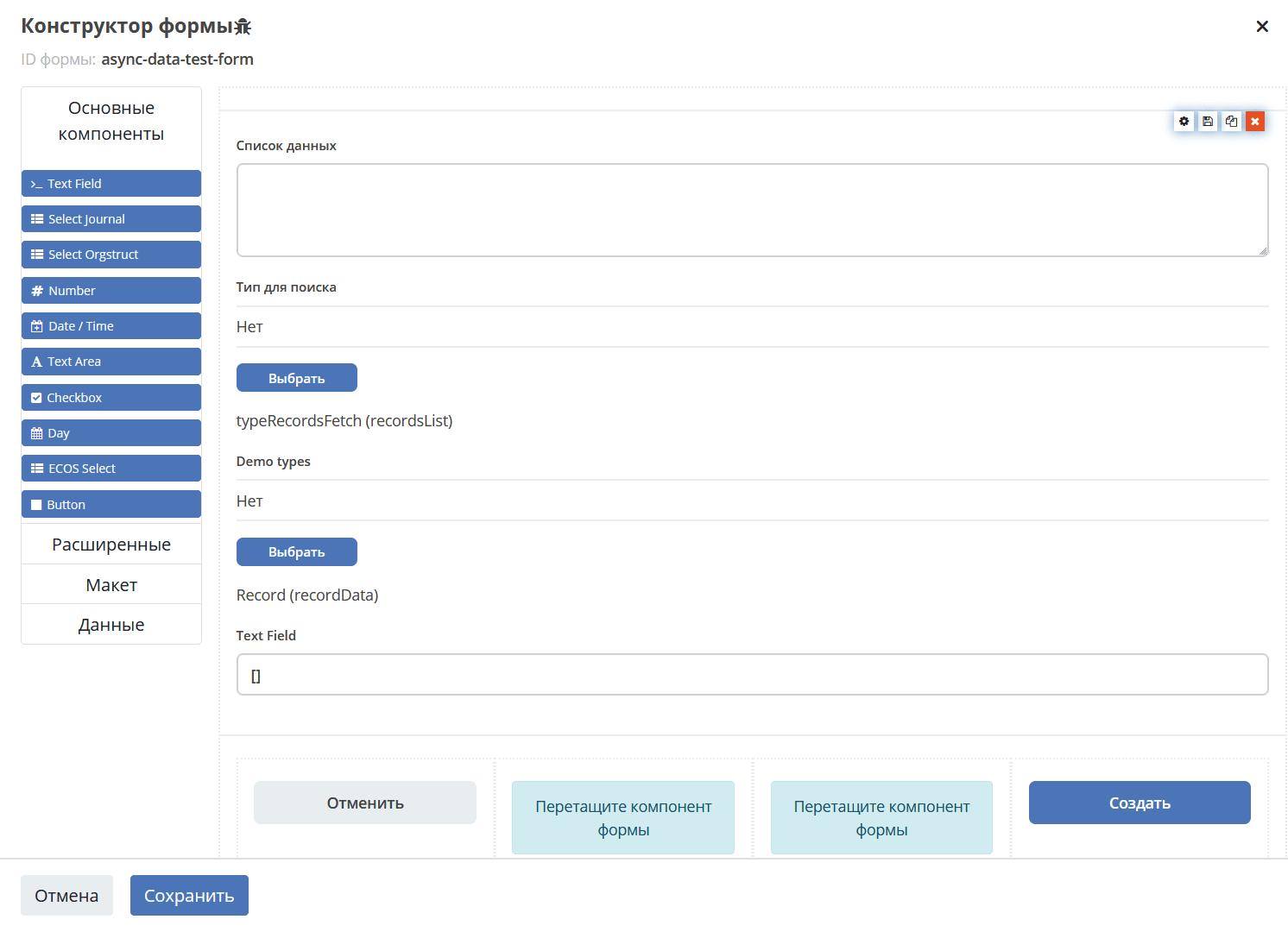
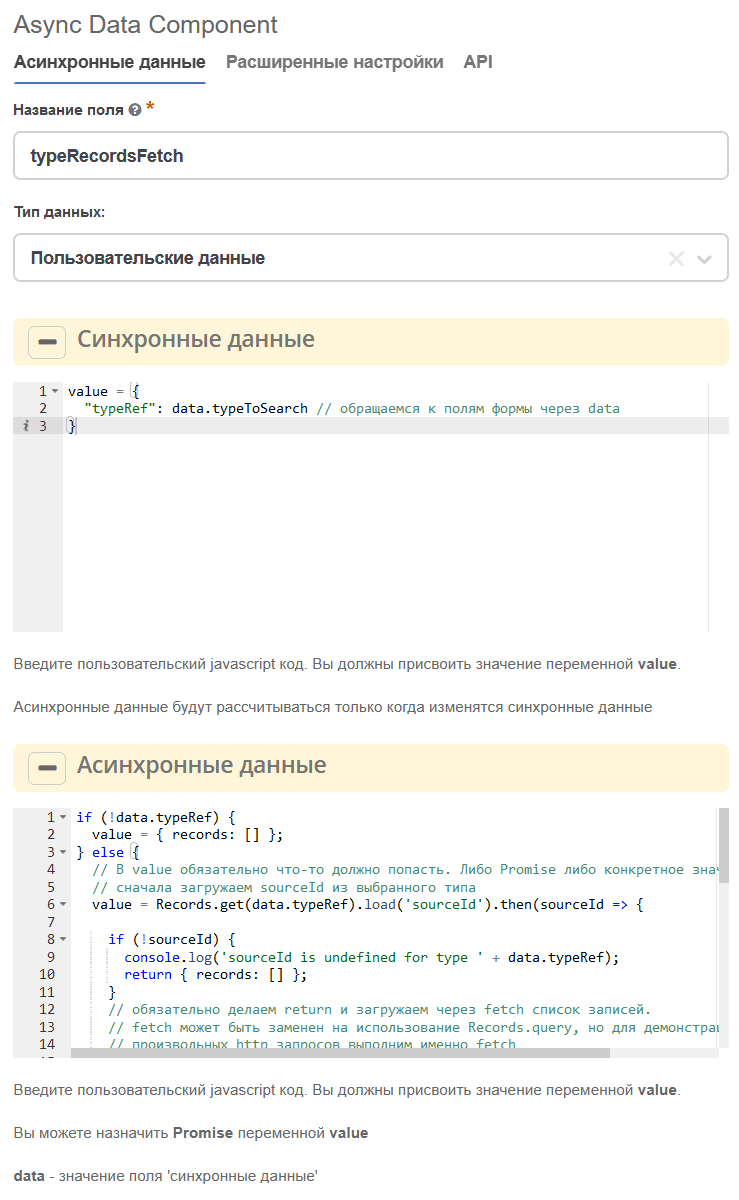
typeRecordsFetch
Async data that computes something on the form based on custom data. In particular, it gets the value of the typeToSearch field from the form.
But in asynchronous data, we cannot directly access form fields.
The division into synchronous and asynchronous is made so that from synchronous data it is determined whether it is necessary to execute logic from asynchronous, that is, until the data in typeToSearch changes, the complex logic will not be recalculated.
Record(recordData)
The async data component itself:
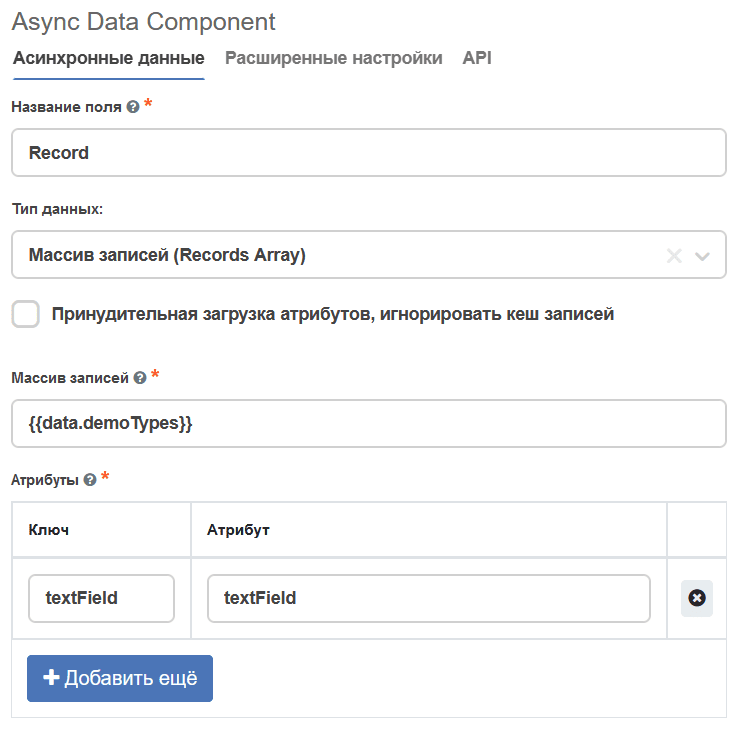
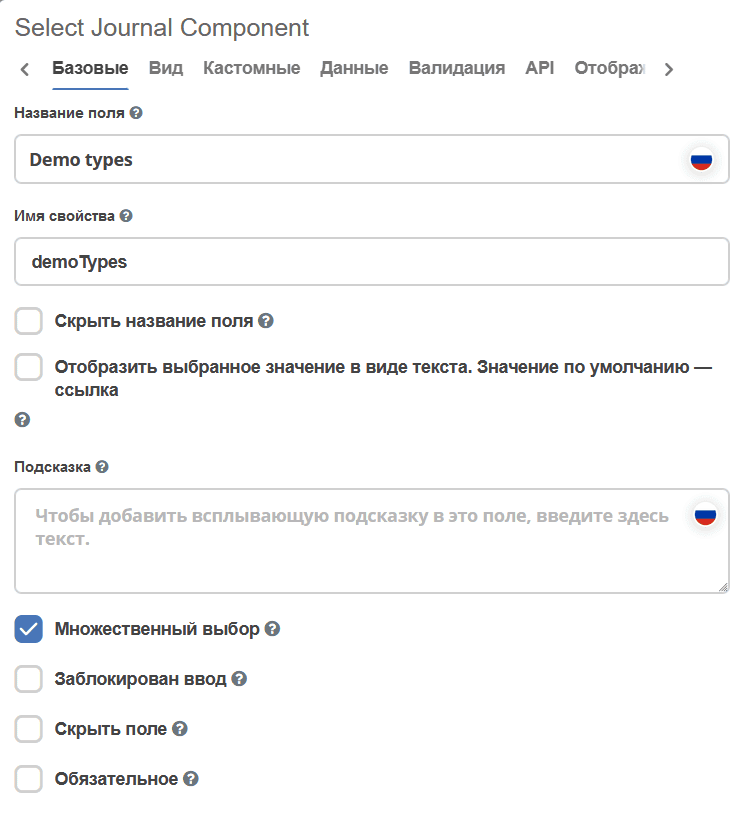
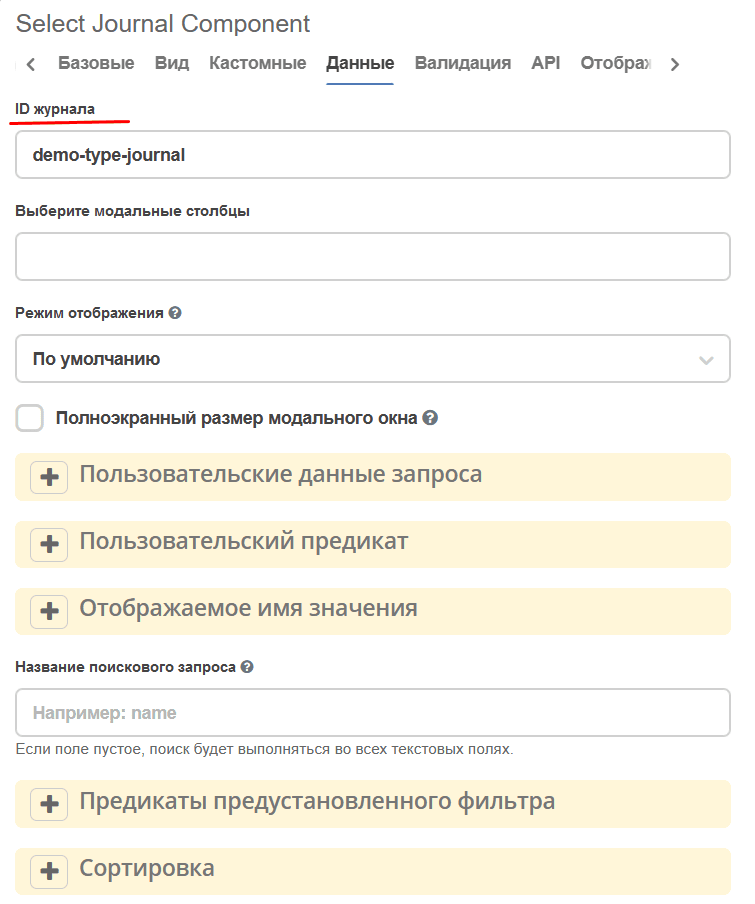
The form has a Demo types component - a selection from a journal, the journal id is specified in the settings.
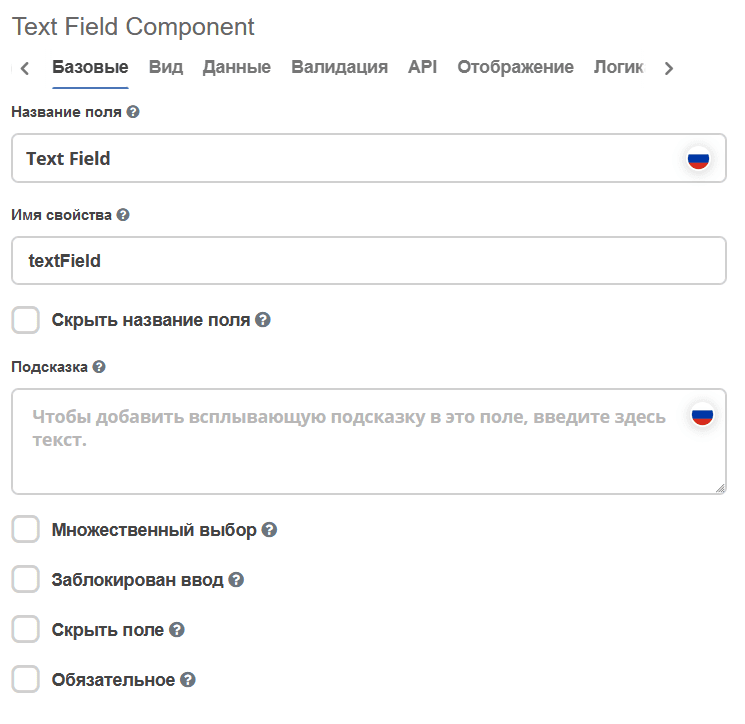
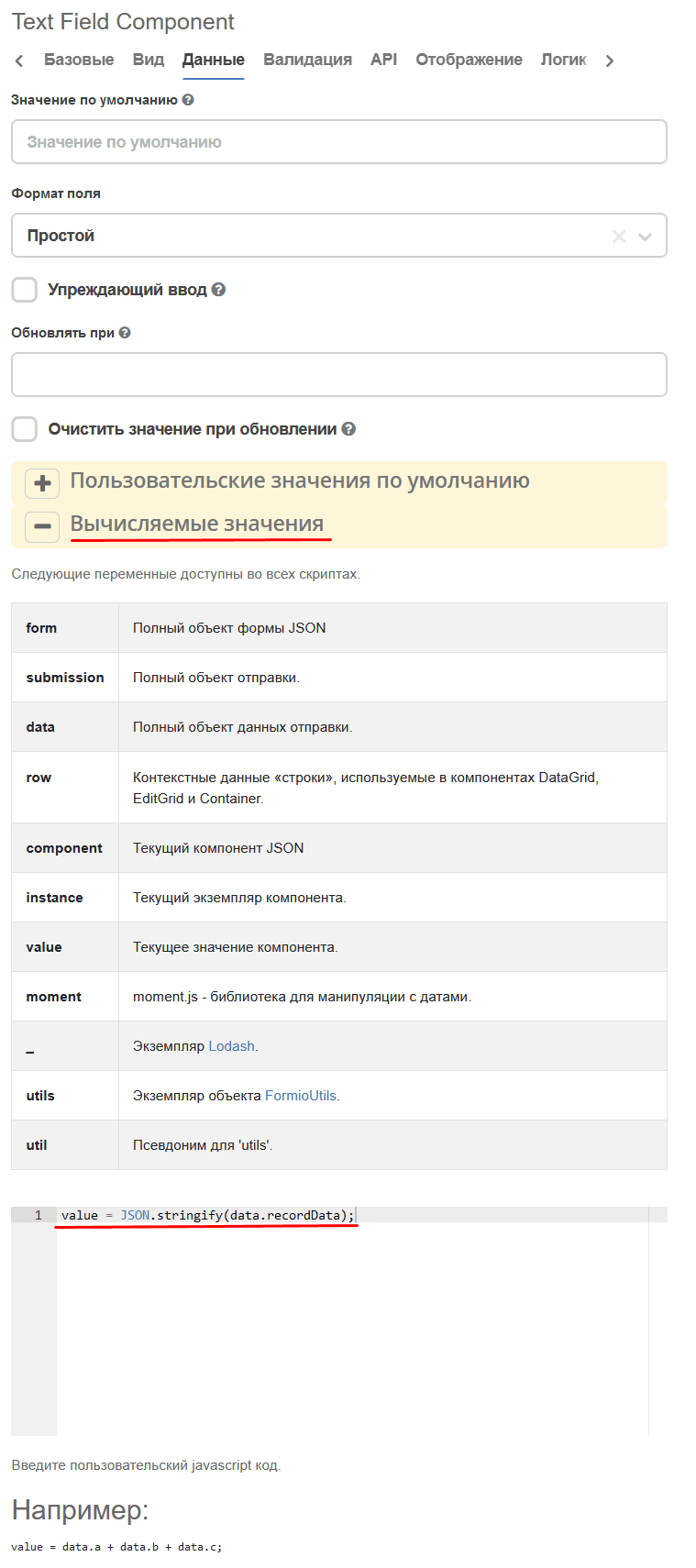
In the Text Field component, a computed assignment is configured - we take the computed recorDdata in async data and convert it to a json string:
A convenient technique for debugging.